How to enable and calibrate HDR in GTA 6 on PS5 and Xbox Series X|S
To set up HDR in GTA 6, enable high dynamic range on your TV and console first. The PS5 version has its own HDR switch. On Xbox Series X and Series S, turn on Allow HDR10 in the console settings. Once that setup is done, pause GTA 6, open Settings, select Display, and choose HDR Calibration. If your console and display are already set up for HDR, you can go straight to the game’s three sliders.
Enable the enhanced format for the HDMI input your console actually uses. Your TV might call it Enhanced format or Input Signal Plus. Select the TV’s game picture mode while it is receiving HDR. For HDR10 calibration, Rockstar recommends disabling Dynamic Tone Mapping if it is on and selecting HGiG if your TV offers it. Dynamic tone mapping adjusts the signal on the fly, which can make it difficult to see exactly when a test pattern fades into the background. Rockstar’s HDR troubleshooting guide
Turn on HDR on PS5 and PS5 Pro
- On the console, open Settings, Screen and Video, then Video Output. Set HDR to On When Supported.
- Select Adjust HDR in the same menu. The first two screens use a sun symbol to help set the upper brightness limits. The third sets the black level. Follow the visibility prompt on each screen. PlayStation’s PS5 HDR settings
- Press Options in GTA 6 and open Settings. Use L1 and R1 to reach Display. Set HDR to On, then open HDR Calibration directly below it. PS5 menu screenshots
Turn on HDR on Xbox Series X and Series S
- Press the Xbox button and open Profile & system, then Settings. Under General, select TV & display options, open Video modes, and tick Allow HDR10. If Dolby Vision for Gaming is on, temporarily clear it to calibrate in HDR10.
- Return to TV & display options. Open 4K TV details to see whether Xbox detects HDR support on your connected display. Then open Calibrate HDR for games. It starts with a dark pattern, followed by two bright tests for a small area and for the whole screen. Use the D-pad and follow the prompt on each screen. Xbox display setup and calibration
- Pause GTA 6 and open Settings, Display, then HDR Calibration. Xbox handles HDR at the console level, so you can look for the calibration option directly. GTA 6’s display menu on PS5 and Xbox
The GTA 6 listing in the Xbox Store specifies HDR10. On compatible TVs, Xbox can also output HDR10 games using Dolby Vision for Gaming. To see which format is active, check the TV’s signal information while the game is running. Auto HDR is designed for games that output an SDR image. GTA 6 in the Xbox Store · Dolby Vision on Xbox
If you only see Brightness Calibration
On Xbox, Brightness Calibration can appear under Display. If it is the only brightness calibration option, check the current HDMI signal on your TV while the game is open. If the signal is SDR, check Allow HDR10 on Xbox and the enhanced format setting on the TV’s HDMI input. If there is a receiver in between, try connecting the console directly to the TV with its supplied cable. After switching formats, fully quit and reopen the game if the menu still looks the same. Xbox menu footage at 7:29
Tune GTA 6’s HDR for your display
The game’s sliders let you tune everyday whites, highlights, and shadows. The starting values shown on PS5 are Max Brightness 600, Black Levels 50, and Paper White 50. The D-pad adjusts the selected slider. R1 cycles through the test images, Triangle hides the menu, and Square is labeled Restore Default. Press Cross for Continue or Circle to go back. On Xbox, use the controller prompts in the game.
- Paper White sets the brightness of ordinary light surfaces. On PS5, press R1 until the daylight boat scene appears. Look at the white hull and the people’s faces. If they look dull in daylight, raise the setting a little. If the light surfaces are uncomfortable to look at, lower it. Adjust it in the lighting you usually play in.
- Max Brightness sets peak brightness. Return to the first test and adjust the slider until the Rockstar emblem just stands out against the bright tile. If it keeps blending into the tile, check the TV’s tone mapping. If the tile still gives you no clear reference, start with your display’s measured peak in its HDR game mode, if you know it. Check the highlights in both boat scenes. The white hull and the reflections on the water should still show changes in tone.
- Black Levels sets how dark blacks look. Keep the panel open and highlight this slider on the first test screen. Adjust it until the dark pattern just begins to show. Check the night image. Raise the value slightly if the shapes of objects disappear into the shadows. Lower it if the night scene looks gray. On an OLED in a dark room, you can try a lower setting and check whether dark details stay visible.
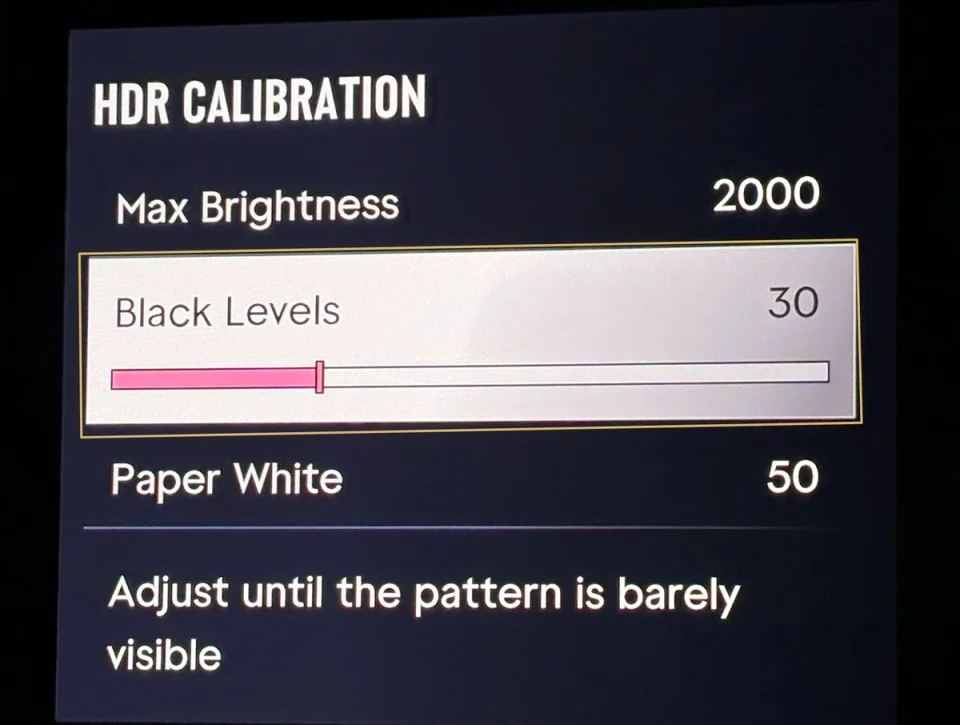
Photo of the PS5 Pro menu from HDR Game Analysis. The values shown are the reviewer’s test settings.
After changing Paper White, take another look at the highlights. With Max Brightness at 1000, HDR Game Analysis measured a peak of about 960 nits on PS5 Pro at Paper White 50. With Max Brightness unchanged and Paper White 35, that dropped to about 620 nits. A nit is a unit of brightness. If highlights lose their punch when you lower Paper White, raise Max Brightness a little at a time and watch how the whole scene changes. HDR Game Analysis measurements
Check your settings in the game world
Stop at the entrance to a covered parking garage. From the same angle, look at the sunlit exterior and see whether you can make out the columns further inside. If the exterior looks natural but the columns blend into the wall, start with Black Levels. If dialing in the exterior also changes the reflections on the cars, revisit Paper White and Max Brightness.
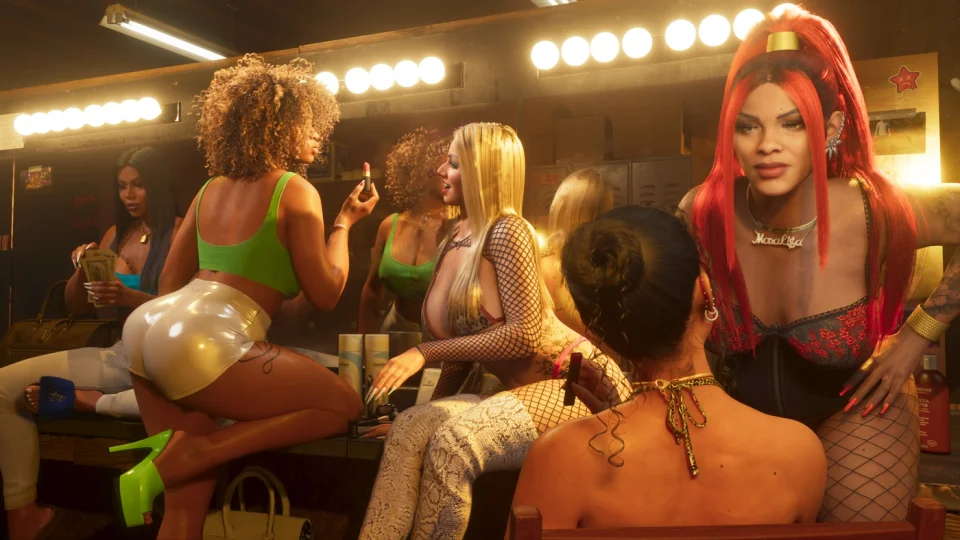
Official Rockstar Games screenshot from the GTA VI gallery. Screenshot gallery
To compare with standard dynamic range (SDR), set the in-game HDR switch to Off on PS5 with the console set to On When Supported. On Xbox, disable Allow HDR10 and Dolby Vision for Gaming in Video modes, then relaunch the game. Verify the signal on the TV. Compare from the same angle, at the same in-game time of day, and with the same lighting in your room.